Overview
Browse reserves and field stations, their characteristics, and their facilities (referred to in RAMS as amenities) to find a site that meets your needs.
The Reserves page consists of two sections:
- Reserve tiles
- Search and filter
Reserve tiles
To learn more about a reserve, click its tile. The reserve’s page will open.
Tiles for all reserves managed in RAMS appear by default. Searching and filtering will change which tiles appear.

Search box
Use the search box to retrieve reserves associated with any text you’ve typed. Search terms can include a reserve’s name, its ecosystem, organization, facility, internet availability, and amenities.
Press return to apply your search.
Click the x in a circle at the right margin of the search box to clear the text search.

Filter by
To search for sites with certain characteristics, use the tags function.
There are six categories to filter by. Each category includes multiple tags. Click a category to expand it.
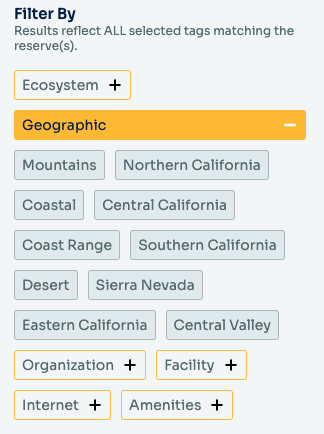
Tags
Ecosystem
Types of habitats/biomes. Options include:
- Alkali wetlands
- Alpine
- Beach
- Chaparral
- Coastal Marine
- Coastal Prairie
- Coastal Sage Scrub
- Conifer Forest
- Dune
- Estuary
- Freshwater Wetland
- Grassland
- Hydrothermal
- Lagoon
- Marsh
- Meadow
- Montane
- Oak Woodland
- Piñon-Juniper Woodland
- Redwoods
- Riparian
- River
- Rocky Intertidal
- Serpentine
- Vernal Pools
Geographic
Physical features and regions. Options include:
- Central California
- Central Valley
- Coast Range
- Coastal
- Desert
- Eastern California
- Mountains
- Sierra Nevada
- Southern California
Organization
Parent organization. Options include:
- CSU—California State University
- Non Profit—Nonprofit organization
- UC ANR—University of California Agriculture and Natural Resources
- UC NRS— University of California Natural Reserve System
- UC Other—Other University of California entity
Facility
Availability of housing and laboratories
- Accommodate Over 30 Overnight
- Accommodate Less Than 30 Overnight
- Lab facility Only
- No Facilities
Internet—internet connection type. Options include:
- Broadband Internet
- Broadband Internet, High Speed Internet
- Cable Internet
- Cell Phone Only
- DSL Internet
- High Speed Internet
- Satellite Internet
- No Network
Amenities
Available facilities
- Animal care facilities
- Astronomical observatory
- Boat
- Camping
- Climate station
- Classroom/Meeting space
- Experimental Stream Channels
- Herbarium
- Internet
- Library
- Marine Operations
- Kitchen
- Overnight housing
- Vehicle
- Wet Laboratory
Using tags
It can take some time for the reserve tiles to reflect your filtering activities and searches, so be patient.
Example 1: One category, one tag
Clicking the Ecosystem button and its Vernal Pools tag displays the five sites that feature vernal pool ecosystems.
Example 2: Two categories and two tags
Clicking the Ecosystem button and its Vernal Pools tag displays the five sites that feature vernal pool ecosystems. Then click the Geographic button and its Sierra Nevada tag as well. This displays the five sites that feature vernal pool ecosystems and the four sites located in the Sierra Nevada.
To deselect a tag, click it a second time.
To deselect all tags, choose Clear Selection & Start Over
Clear Selection & Start Over
Reserve pages
Each reserve has its own page. A photo of the reserve and its name can be seen in the banner.
Beneath the banner, reserve pages are divided into two sections:
- At-a-glance column
- Reserve sub-tabs
At-a-glance column
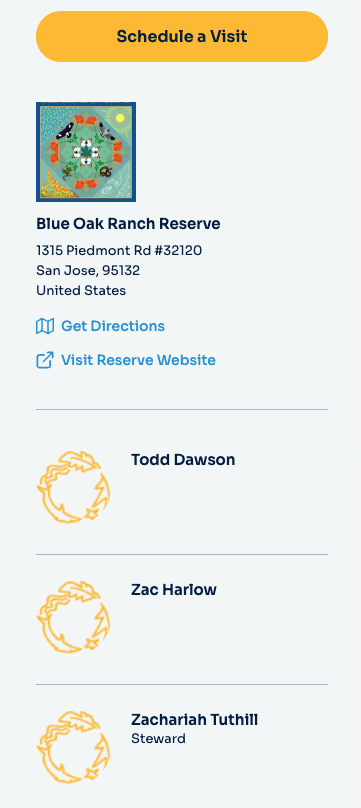
Basic information about the reserve, including how to get there, a link to the reserve website, and the names of reserve staff, are summarized here.
The gold Schedule a Visit button takes you to Create A New Visit/Step 1: Visit Details page.
Reserve sub-tabs
There are five reserve sub-tabs:
- Amenities & Rates
- Waivers
- Rules & Directions
- More Information
- Calendar
The sub-tab you are currently in is underlined in blue
Amenities & Rates
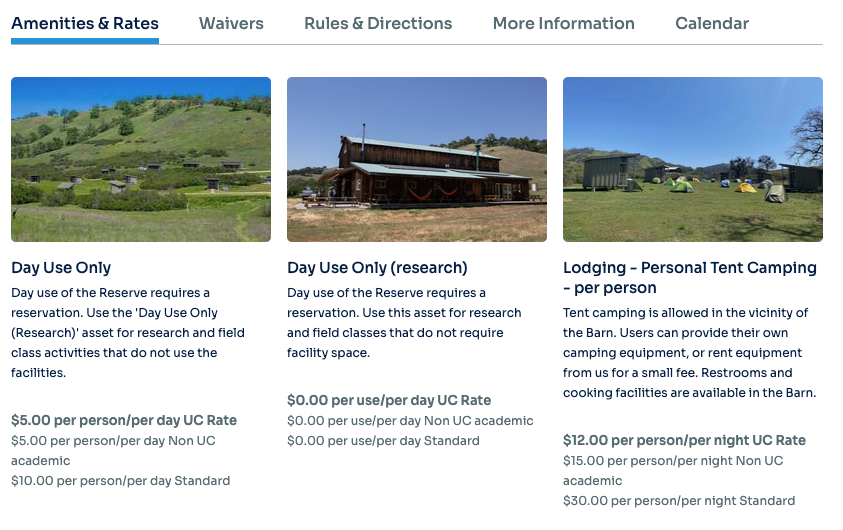
Displays a photo and description of each reserve amenitys, and the cost to reserve it during your visit. Amenities include accommodations, vehicles, facilities such as laboratories and classrooms, and services such as staff time.
Information about each amenity includes a photo, its name, and the cost to reserve it.
Waivers
Waiver agreements must be signed and submitted to reserve staff prior to every visit.
Waivers for most reserves can be downloaded in PDF form. A few reserves collect digital signatures via DocuSign.
For more information about who must sign waivers, and which waivers to use, see Chapter 22: Waiver Guidelines in the UC Natural Reserve System Administrative Handbook.
There are four main waiver types:
- Main Waiver
- Group Signature Form
- Spanish Language Waiver
- Photo Consent Form

Rules & Directions
Displays reserve rules and directions to the reserve.
More Information
Additional resources reserve staff feel will be helpful to visitors, such as links on to how to acknowledge the use of reserves in publications in report, field safety information, etc.
Calendar
Displays reserve use by month. Information listed includes the number of visitors each day (black bars), and whether amenities such as a particular campground or classroom have been reserved (blue bars).
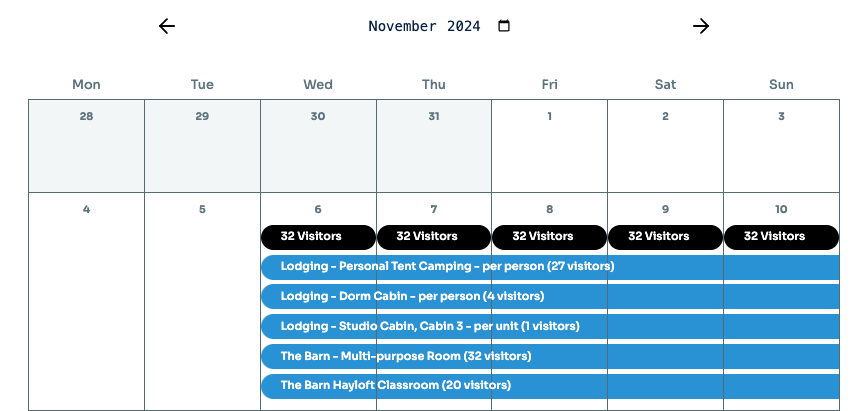
Visitors on this day
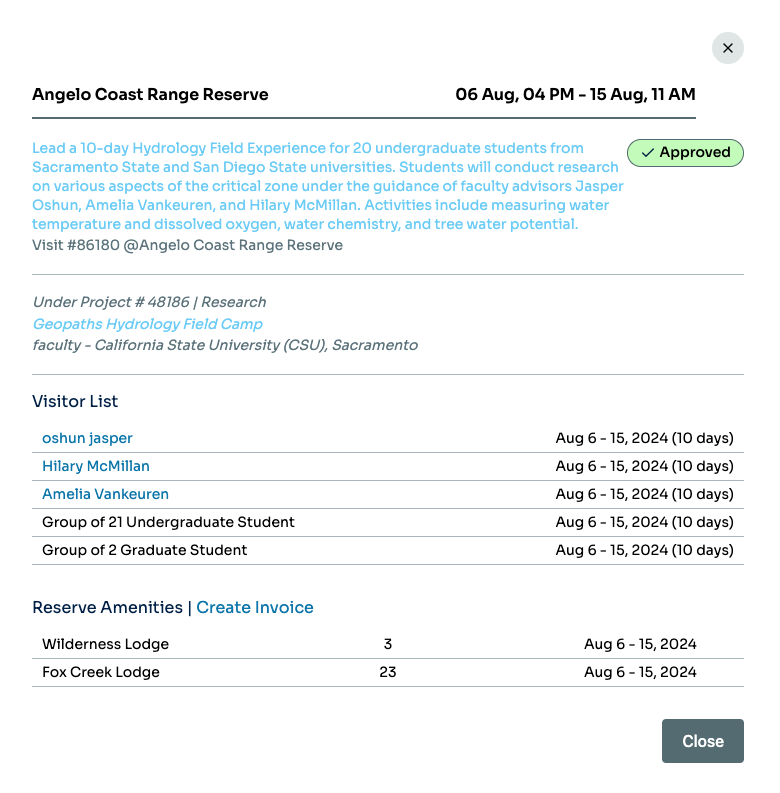
Clicking on the black bar showing a day’s total number of visitors opens a pop-up window featuring details about each visitor group.
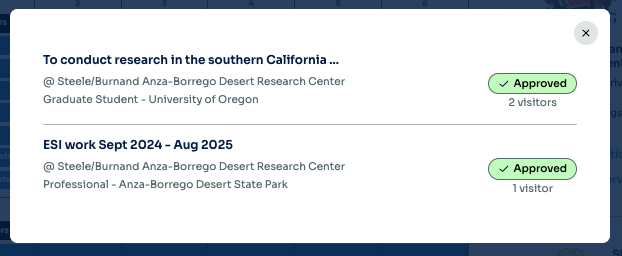
Amenity reservation
Clicking the blue bar showing an amenity reservation opens a pop-up window with details about the visitor(s) who reserved the amenity, their project, their visit, the status of the visit, and the reservation dates.