
After logging in to RAMS, you’ll see the Navigation Bar above and the Dashboard below.

Wherever you are in RAMS, you can return to the Home page by:
- Clicking the RAMS logo at the upper left of the screen.
- Clicking the Home tab.
Home page controls
Click image to enlarge.

Navigation Bar
The navigation bar will appear at the top of every screen. It includes five tabs, a button, and two icons.
The tab you are in is always highlighted in gold.

Navigation Bar Tabs
- Home: Returns you to the Homepage Dashboard.
- Visits: Review visit requests you have already submitted.
- Projects: Review projects you have already submitted.
- Reserves: Browse reserves to view their amenities, habitats, and other characteristics.
- Help: Takes you to the instructions.
- Schedule a Visit Button: Lets you schedule a new visit.
- Logout Icon: Logs you out of RAMS.
- User icon: Your initials. Click to edit your account information.
Dashboard
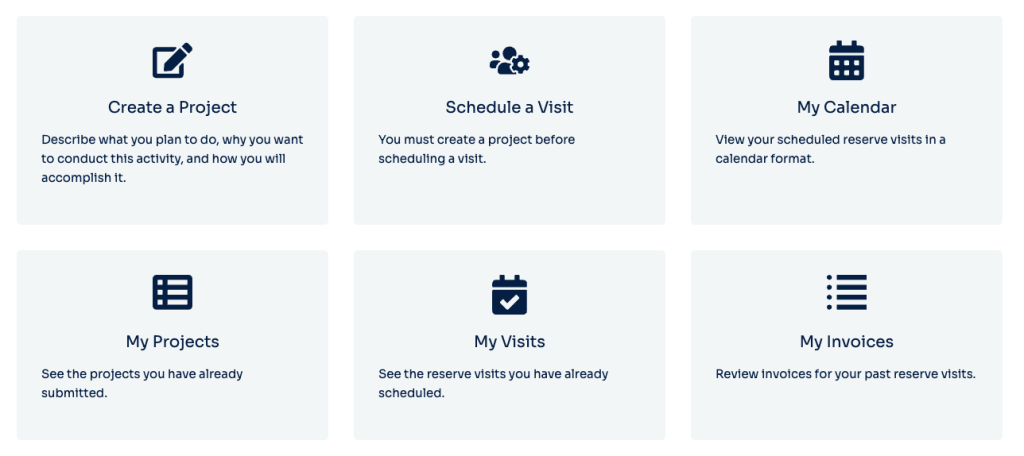
The Dashboard consists of six tiles:
- Create a Project—Starts the process of creating a project.
- Schedule a Visit—Starts the process of scheduling a visit.
- My Calendar—Opens My Visits/Calendar view.
- My Projects—Opens the Projects tab and displays the My Projects list.
- My Visits—Opens the Visits tab and displays the My Visits list.
- My Invoices—Opens the Visits tab and displays the My Invoices list.

Plan Your Visit
Arranging a visit to a reserve involves two steps:
- Submitting a project
- Making a reservation for your visit
Submit your project first, because all visits must be associated with a project.
Saved for Later
Information you enter in RAMS will be saved as you go. You can revisit existing Projects and Visits by logging in later.
Contact Us
If you encounter problems or have suggestions, please fill out our comment form.